

GUIDE
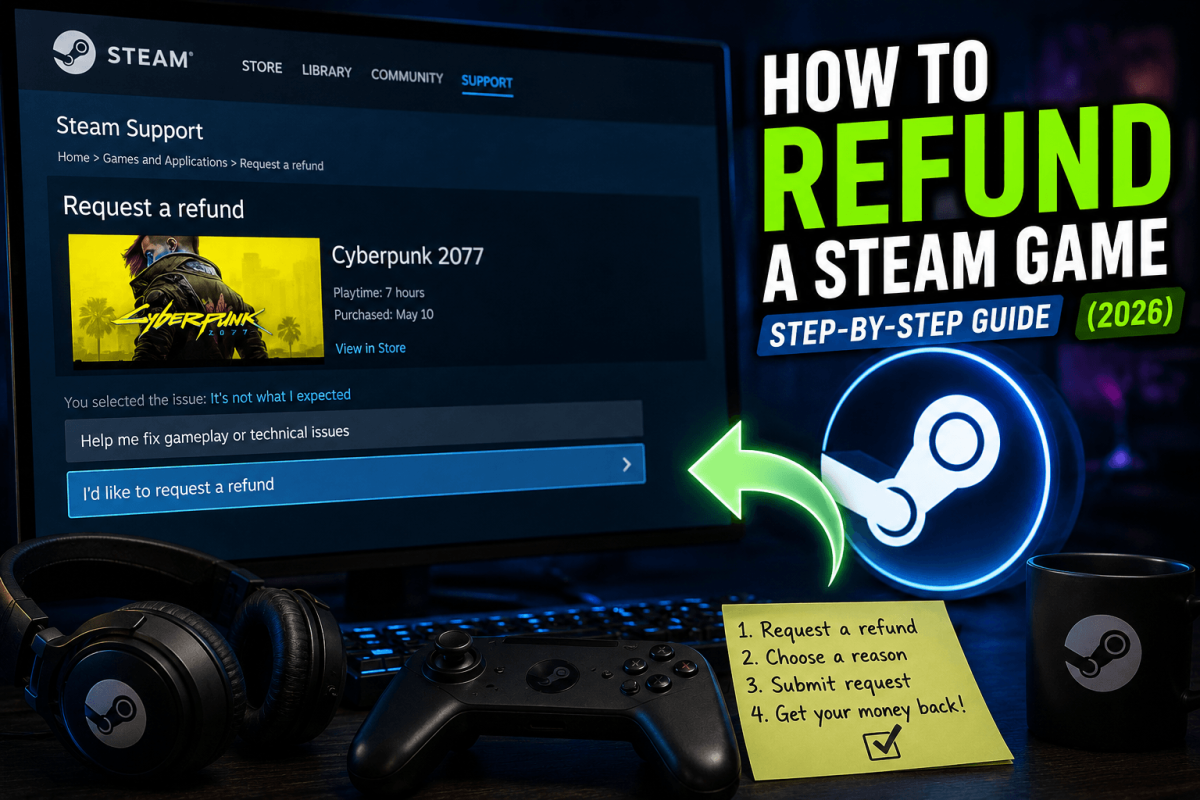
How to Refund a Steam Game — Step-by-Step Guide (2026)
About this guide
Learn how to refund a Steam game in 2026. Step-by-step guide covering the 2-hour/14-day rule, manual review requests, and tips to get approved.
1 min readReading time
BeginnerDifficulty
UpdatedAug 13, 2026
Get Your Money Back
Steam's refund policy is simple: under 2 hours of playtime and within 14 days of purchase = automatic refund. Outside those limits, you can still request one — Valve reviews manually. Here's exactly how.
📋 Refund Requirements
- ✅ Under 2 hours of total playtime
- ✅ Within 14 days of purchase date
- ✅ If both conditions are met, the refund is automatic
- ⚠️ Outside these limits, refunds are at Valve's discretion (they sometimes approve anyway)
📱 How to Request a Refund
- Go to: help.steampowered.com
- Log in → click "Purchases"
- Select the game you want to refund
- Click "I would like a refund"
- Choose reason (performance issues, not as expected, accidental purchase, etc.)
- Choose refund method: Steam Wallet (instant) or Original payment method (3-7 business days)
- Submit the request
💡 Steam Wallet refunds are processed within hours. Credit card/PayPal refunds take 3-7 business days.
📖 More Tutorials
Bookmark Guide
Bookmark this page and check back regularly. We update our guides to keep them accurate and up to date.