

GUIDE
How to Set Steam Launch Options — FPS, Windowed, Console & More (2026)
About this guide
Learn how to set Steam launch options in 2026. Force windowed mode, enable console, cap FPS, and fix compatibility issues with our complete guide.
1 min readReading time
BeginnerDifficulty
UpdatedAug 13, 2026
Customize How Games Launch
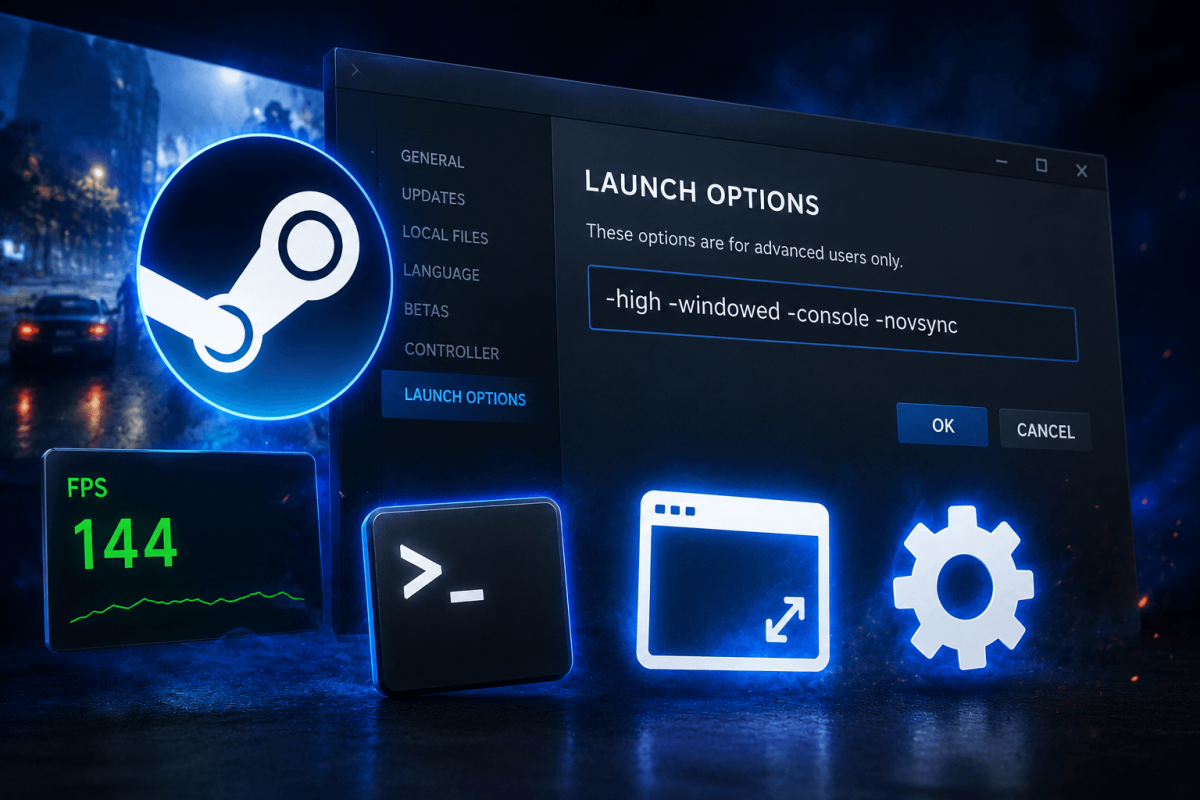
Steam Launch Options let you pass command-line parameters to games before they start. This is useful for forcing windowed mode, enabling developer consoles, setting FPS limits, and fixing compatibility issues.
📋 How to Set Launch Options
- Open Steam → Library
- Right-click the game → Properties
- In the General tab, find "Launch Options"
- Type your parameters and close
🔑 Most Useful Launch Options
-windowedLaunch in windowed mode
-fullscreenForce fullscreen
-w 1920 -h 1080Set resolution
-consoleEnable developer console on launch
-novidSkip intro videos (faster startup)
-highSet game process to high CPU priority
-dx11 / -dx12 / -vulkanForce specific graphics API
-fps_max 144Cap FPS (Source games like CS2)
-novrLaunch without VR (for HL: Alyx NoVR mod)
📖 More Tutorials
Bookmark Guide
Bookmark this page and check back regularly. We update our guides to keep them accurate and up to date.