

📚 Tutorials
July 11, 2026
How to Verify Game Files on Steam — Fix Crashes & Missing Files (2026)
Fix Most Game Issues in 2 Minutes
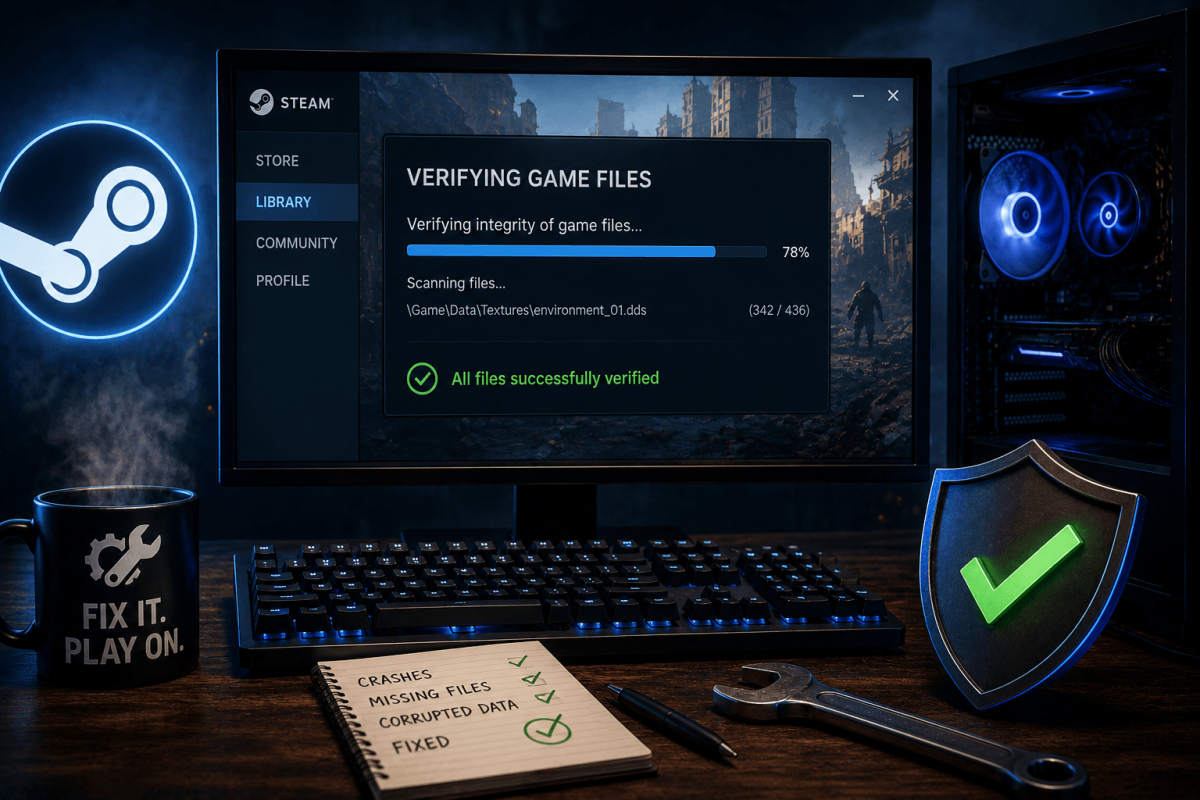
Game crashing? Textures missing? Infinite loading screen? The first thing to try is verifying game files. Steam checks every file against its servers and re-downloads any that are corrupted or missing.
📋 Steps
- Open Steam → go to your Library
- Right-click the broken game → Properties
- Click Installed Files tab
- Click "Verify integrity of game files"
- Wait for the process to complete (1-10 minutes depending on game size)
- Steam will report how many files were re-acquired
- Launch the game — the issue is usually fixed
💡 When to Verify
- Game crashes on startup or during loading
- Missing textures or models (invisible walls, black objects)
- After a power outage or forced shutdown during gameplay
- After moving game files between drives
- After a failed update