

📚 دروس
July 29, 2026
كيف ترفع معدل الإطارات في أي لعبة PC — 15 نصيحة للأداء (2026)
احصل على إطارات أكثر في الثانية
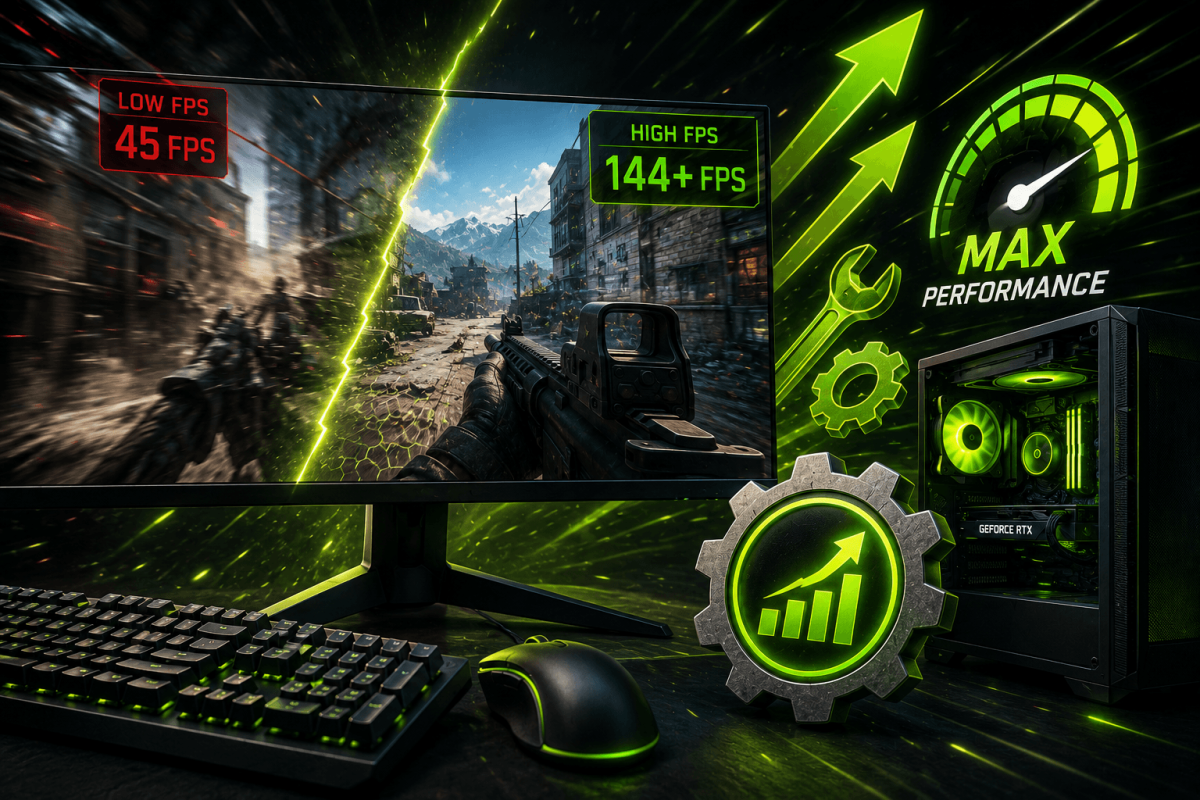
معدل الإطارات المنخفض يجعل الألعاب بطيئة وغير قابلة للعب. قبل شراء كرت شاشة جديد، جرّب هذه النصائح الـ15 للتحسين التي يمكن أن ترفع الأداء بنسبة 20-50% مجانًا.
⚡ 15 نصيحة لرفع معدل الإطارات
- حدّث تعريفات كرت الشاشة — NVIDIA GeForce Experience أو AMD Adrenalin. التعريفات الجديدة غالبًا ترفع الإطارات بنسبة 5-15%.
- اخفض الدقة — الانتقال من 1440p إلى 1080p يمكن أن يضاعف الإطارات. استخدم مقياس العرض إذا كان متاحًا.
- عطّل V-Sync — V-Sync يحدّ الإطارات ويضيف تأخيرًا في الإدخال. عطّله.
- اضبط الظلال على منخفض/متوسط — الظلال هي العدو الأول للإطارات. تقليلها له تأثير بصري بسيط.
- عطّل مكافحة التعرجات — أو اضبطها على FXAA (الخيار الأخف). TAA وMSAA مكلفان للأداء.
- أغلق البرامج في الخلفية — كروم، تراكب ديسكورد، برامج البث تستهلك GPU/CPU.
- اضبط خطة الطاقة في ويندوز على «أداء عالي» — الإعدادات ← الطاقة ← الأداء العالي.
- عطّل تحسينات ملء الشاشة — كليك يمين على ملف اللعبة .exe ← الخصائص ← التوافق ← فعّل «تعطيل تحسينات ملء الشاشة».
- استخدم وضع الألعاب — إعدادات ويندوز ← الألعاب ← وضع الألعاب ← تشغيل.
- نظّف جهازك فيزيائيًا — تراكم الغبار يسبب خنق حراري. نظّف المراوح والمشتتات الحرارية.
- اضبط اللعبة على أولوية عالية — إدارة المهام ← عملية اللعبة ← تعيين الأولوية ← عالية.
- استخدم DLSS/FSR/XeSS — رفع الدقة بالذكاء الاصطناعي يعطي جودة شبه أصلية مع إطارات أعلى بنسبة 30-50%. فعّله في إعدادات الرسوم.
- عطّل التأثيرات الحجمية — الضباب، أشعة الشمس، السحب الحجمية تستهلك GPU بشكل كبير. عطّلها.
- اخفض مسافة الرسم — يقلل عدد العناصر المعروضة. مكسب كبير في الألعاب المفتوحة.
- ثبّت الألعاب على SSD — تحميل أسرع ويقلل التقطيع أثناء البث.