

GUIDE
Comment vérifier les fichiers du jeu sur Steam — Corriger les crashs et fichiers manquants (2026)
À propos
Game crashing or missing files? Learn how to verify game files on Steam in 2 minutes. Fix corrupted data, texture glitches, and infinite loading screens with this 2026 gu
1 min de lectureReading time
DébutantDifficulty
Mis à jourAug 13, 2026
Résolvez la plupart des problèmes de jeu en 2 minutes
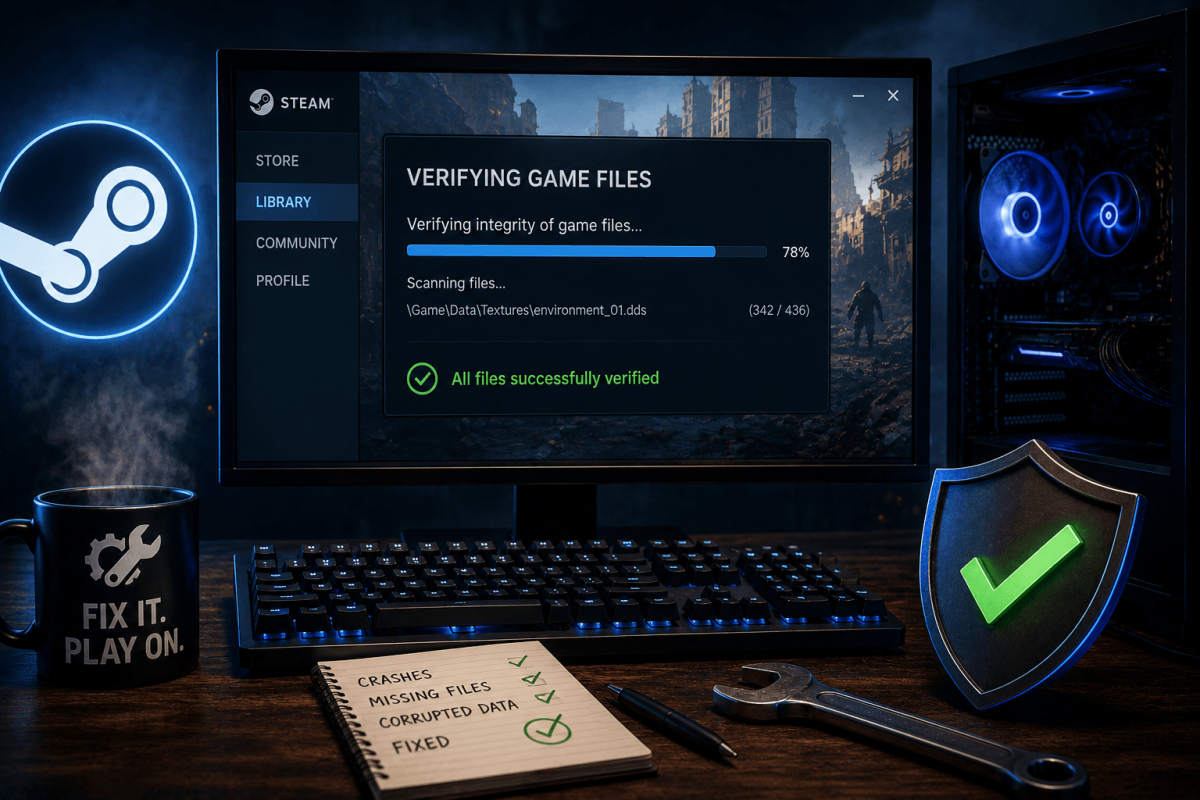
Le jeu plante ? Textures manquantes ? Écran de chargement infini ? La première chose à essayer est de vérifier les fichiers du jeu. Steam compare chaque fichier avec ses serveurs et re-télécharge ceux qui sont corrompus ou manquants.
📋 Étapes
- Ouvrez Steam → allez dans votre Bibliothèque
- Clic droit sur le jeu qui pose problème → Propriétés
- Cliquez sur l'onglet Fichiers installés
- Cliquez sur "Vérifier l'intégrité des fichiers du jeu"
- Attendez que le processus se termine (1 à 10 minutes selon la taille du jeu)
- Steam indiquera combien de fichiers ont été ré-acquis
- Lancez le jeu — le problème est généralement résolu
💡 Quand vérifier
- Le jeu plante au démarrage ou pendant le chargement
- Textures ou modèles manquants (murs invisibles, objets noirs)
- Après une coupure de courant ou un arrêt forcé pendant le jeu
- Après avoir déplacé les fichiers du jeu entre disques
- Après une mise à jour échouée
📖 Plus de tutoriels
Enregistrer
Ajoutez cette page aux favoris. Nous mettons régulièrement à jour nos guides.